
How to Download Your e-Aadhaar
A compact, step-by-step guide covering fast download methods, password rules, legal validity, and troubleshooting.

If your mobile number is linked, go to myaadhaar.uidai.gov.in, verify with OTP, and download your PDF in under 2 minutes. No registered number? Jump to Downloading Without a Registered Mobile Number for your two offline options.
Prerequisites Checklist
- Linked mobile number: required to receive the one-time passcode (OTP).
- One identifier: your 12-digit Aadhaar Number, 28-digit Enrolment ID (EID), or 16-digit Virtual ID (VID).
- PDF reader: any standard app to open the encrypted file.
Fast-Track Download Methods
Option A: Official Web Portal
Best for desktop / web browsers
Visit
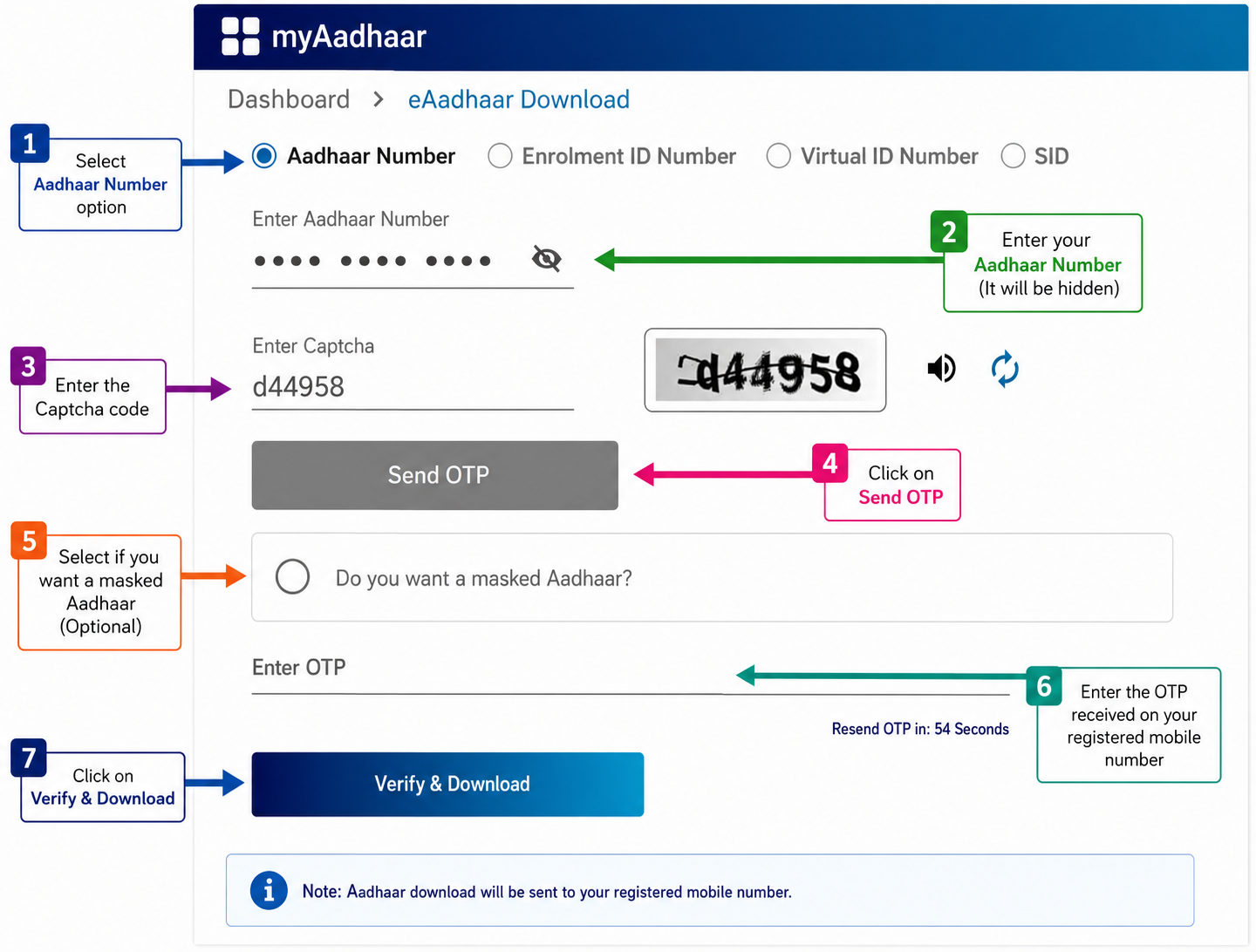
myaadhaar.uidai.gov.inand click Download Aadhaar.Enter your Aadhaar Number, EID, or VID, plus the visual captcha.
Click Send OTP and enter the code sent to your phone.
Optionally, check Masked Aadhaar to hide your full digits.
Click Verify & Download to get your PDF.
Option B: Aadhaar App
Best for iOS & Android users
Open the official Aadhaar app.
Tap Download Aadhaar from the dashboard.
Select Regular or Masked Aadhaar.
Enter your credentials and submit the OTP.
The digital copy saves automatically to your device.
How to Unlock Your Downloaded PDF
Every downloaded e-Aadhaar PDF is encrypted for security. The default password uses a fixed combination:
4 LETTERS of your name in CAPITAL letters + your BIRTH YEAR (YYYY).
| Full Name | Birth Year | Password |
|---|---|---|
| AMIT KUMAR | 1995 | AMIT1995 |
| SURAJ PATIL | 2001 | SURA2001 |
| R. V. PRASAD | 1988 | RVPR1988 |
| ANITA | 1990 | ANIT1990 |
Regular vs. Masked Aadhaar
| Feature | Regular e-Aadhaar | Masked e-Aadhaar |
|---|---|---|
| Visibility | Full 12-digit number | Only last 4 digits |
| Acceptability | Accepted everywhere | Valid legal proof |
| Best used for | Government work, banking | Private sharing, check-ins |
Downloading Without a Registered Mobile Number
Option A: Order PVC Card Online
Visit myaadhaar.uidai.gov.in → Order Aadhaar PVC Card. Enter your Aadhaar number and any active mobile number for the OTP. Pay the official fee, and a durable PVC card is delivered by Speed Post.
Option B: Biometric Print at Seva Kendra
Visit the nearest official Aadhaar centre with your number. Complete a quick fingerprint or iris scan to get an instant printout on the spot, for a small official fee.
Legal Validity & Troubleshooting
Legal status: under Section 4(3) of the Aadhaar Act, 2016, a downloaded e-Aadhaar is legally equal to a physical printed card. It carries a digitally signed QR code accepted by banks, telecom operators, passport offices, and airports across India.
- OTP not arriving: the most common cause is that the mobile number on your Aadhaar record isn’t your current one, so the OTP goes to an old SIM. Before anything else, go to myaadhaar.uidai.gov.in, open Verify Email/Mobile Number, and enter the number you think is linked. It confirms in one screen, without sending an OTP, whether that number is on file. If it isn’t, you’ll need to update your registered mobile number first.
- OTP still not coming to the right number: check that Do Not Disturb (DND) isn’t blocking the SMS, wait 2-3 minutes during peak hours, and avoid requesting multiple OTPs in quick succession, which can trigger a temporary block.
- Invalid captcha error: refresh the captcha or clear your browser cache before retrying.
- PDF password error: ensure all letters are uppercase, with no spaces or special characters.
Common Questions
Is a downloaded e-Aadhaar as valid as the printed card?
Yes. Under Section 4(3) of the Aadhaar Act, a downloaded e-Aadhaar is legally equal to the physical card. It carries a digitally signed QR code accepted by banks, telecom operators, and government offices across India.
I forgot the password for my e-Aadhaar PDF, what is it?
It’s the first 4 letters of your name in capital letters followed by your birth year, for example AMIT1995. The full breakdown with examples is in the “How to Unlock Your Downloaded PDF” section above.
Can I download my e-Aadhaar without a registered mobile number?
Not online, the download needs an OTP to your registered mobile. If yours isn’t linked, order a PVC card using any active number, or visit an Aadhaar Seva Kendra for a biometric-verified printout. Both options are covered in the no-mobile section above.
How many times can I download my e-Aadhaar?
There’s no limit, and it’s free every time from the official portal. Your e-Aadhaar is always available to re-download whenever you need a fresh copy.
Quick Reference & Helpline
| Resource | Official Link / Contact |
|---|---|
| Official web portal | myaadhaar.uidai.gov.in |
| Locate nearest centre | bhuvan-app3.nrsc.gov.in/aadhaar |
| Toll-free helpline | 1947 (the automated menu works 24 hours; our UIDAI guide shows when you can speak to an executive) |
| Support email | help@uidai.gov.in |
| UIDAI services, helpline and offices | Our UIDAI guide |